MCP Servers
MCP Servers are configuration points that hold everything an integration needs to call a Model Context Protocol (MCP) server. An MCP server exposes one or more tools — typed operations an AI model or an automation layer can invoke. By defining the MCP server once on the Operations page, the connection, transport, authentication and the discovered tool catalog are managed centrally and can be reused by any integration flow through the MCP Server Connector.
The MCP Server definition uses the widely adopted mcpServers JSON configuration object, so an existing MCP client configuration can usually be pasted in directly. MIP detects the transport from the configuration (command → STDIO, url → HTTP) and applies its own credential and authorization model on top, without changing the configuration itself.
MIP connects to MCP servers using the Model Context Protocol (MCP), an open standard. For background on the protocol, see the official site at modelcontextprotocol.io.
The configuration on this page uses the common mcpServers format used by MCP clients such as Claude Desktop, Cursor and Antigravity, so you can usually paste a configuration from one of those clients directly. Some clients use a slightly different layout, so occasionally a small adjustment is needed.
The MCP Servers list
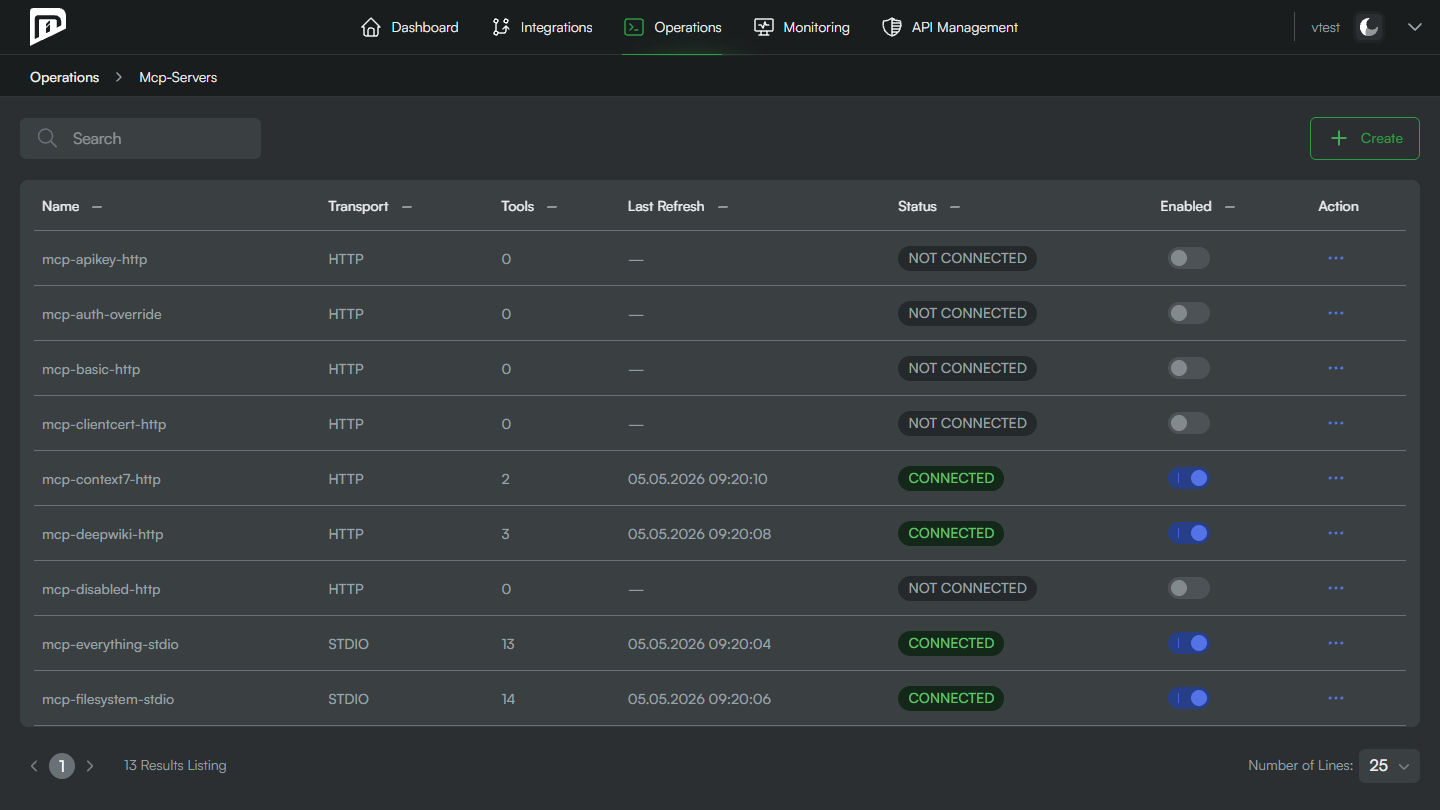
The page shows every MCP server you have defined:
| Column | Shows |
|---|---|
| Name | The server's name — this is what you select in the MCP Server Connector. |
| Transport | STDIO (local process) or Streamable HTTP (remote URL), detected from the configuration. |
| Tools | How many tools were found on the server. |
| Last Refresh | When the tool list was last refreshed. |
| Status | CONNECTED or NOT CONNECTED, from the last refresh. |
| Enabled | Whether flows are allowed to use the server. |
| Action | The ⋯ menu — see Action menu. |
Creating an MCP Server
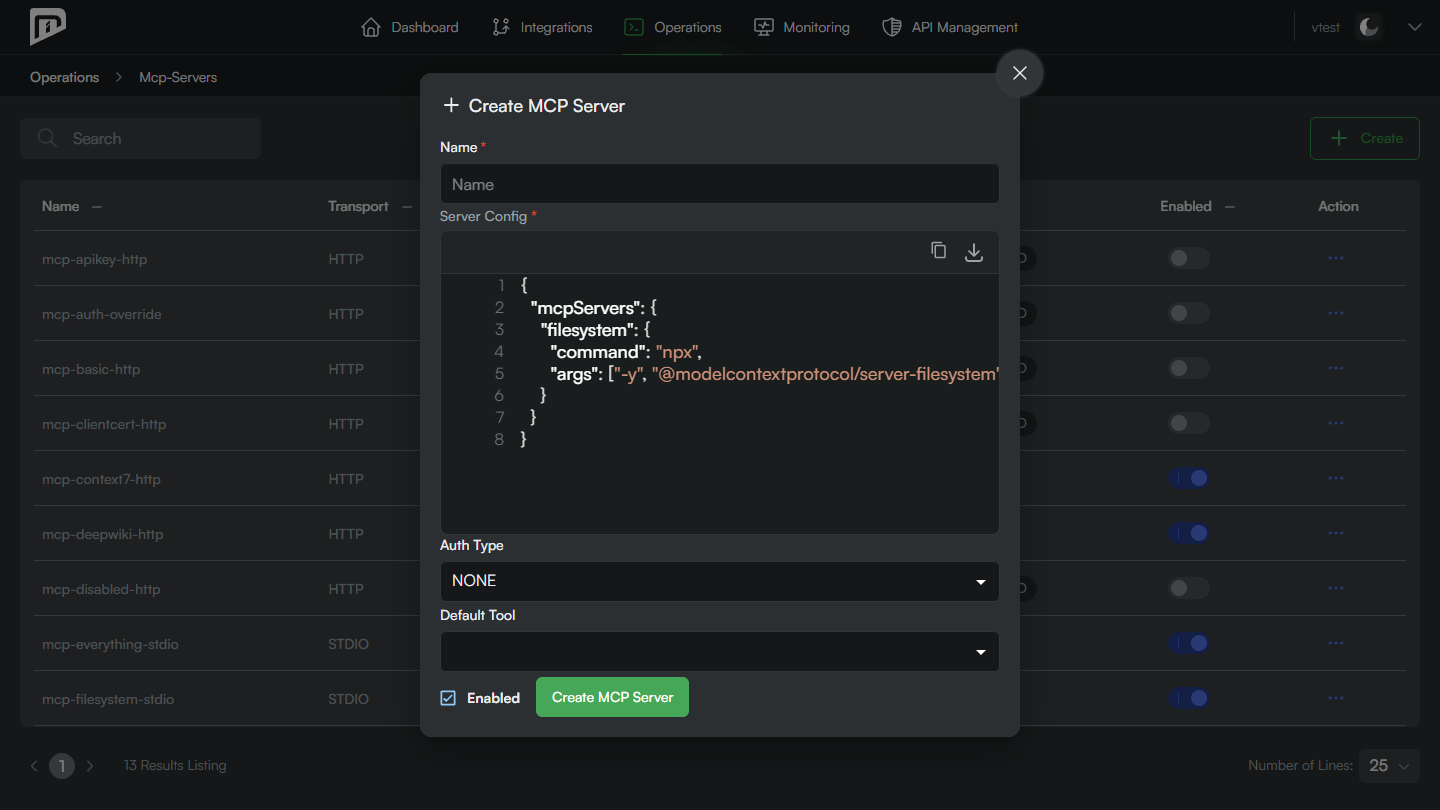
Click Create and fill in the dialog:
| Field | Description |
|---|---|
| Name | A unique name for the server. |
| Server Config | The server configuration in mcpServers JSON format — see Server Config examples. A command makes it STDIO; a url makes it Streamable HTTP. |
| Auth Type | The authentication the server needs: None, API Key, Bearer, Basic, OAuth2 or Client Certificate. |
| Credential | Appears when Auth Type is not None. Pick the credential — from the Credentials page — that holds the secret; MIP applies it to the connection for you. |
| Default Tool | The tool a flow uses when its node does not choose one. Useful when the server has a single main tool. |
| Enabled | Turns the server on or off for flows. |
After saving, open the ⋯ menu and choose Refresh Tools. MIP connects to the server and loads its tools — with names, descriptions and input/output schemas — so the flow designer can offer them later.
- Have your MCP server configuration ready in
mcpServersJSON format (acommand-based STDIO server, or aurl-based Streamable HTTP server). - If the server needs authentication, create the matching credential (API Key, Bearer, Basic or OAuth2) on the Credentials page first.
- After saving, run Refresh Tools and check that Status becomes CONNECTED.
Server Config examples
The examples below cover both transports and each supported authentication type, all using the mcpServers format the UI expects.
STDIO servers (local process)
A local STDIO server is launched as a process; the transport is selected by the command key, with optional args and env:
{
  "mcpServers": {
    "everything": {
      "command": "npx",
      "args": ["-y", "@modelcontextprotocol/server-everything"]
    }
  }
}
{
  "mcpServers": {
    "filesystem": {
      "command": "npx",
      "args": ["-y", "@modelcontextprotocol/server-filesystem", "/tmp"],
      "env": {
        "LOG_LEVEL": "info"
      }
    }
  }
}
Streamable HTTP servers (remote endpoint)
A remote server is selected by the url key, with optional headers. The simplest case needs no authentication:
{
  "mcpServers": {
    "deepwiki": {
      "url": "https://mcp.deepwiki.com/mcp"
    }
  }
}
Authentication
For every type the Server Config looks the same — what changes is the Auth Type you choose and the credential you reference. The table shows a representative configuration for each. The secrets shown inline are placeholders: when you reference a credential, MIP supplies the real one for you.
| Auth Type | Representative Server Config | Notes |
|---|---|---|
| None | {"url": "https://mcp.deepwiki.com/mcp"} | Public server, no credential. |
| Bearer | {"url": "https://api.example.com/mcp/", "headers": {"Authorization": "Bearer <token>"}} | Token comes from the referenced credential. |
| API Key | {"url": "https://example.com/mcp", "headers": {"X-API-Key": "<key>"}} | The key from the referenced API Key credential. |
| Basic | {"url": "https://example.com/mcp", "headers": {"Authorization": "Basic <base64>"}} | Username and password from the referenced Basic credential. |
| OAuth2 | {"url": "https://example.com/mcp", "headers": {"Authorization": "Bearer <access-token>"}} | Uses the OAuth2 credential's access token (Streamable HTTP only). |
| Client Certificate | {"url": "https://example.com/mcp"} | Certificate-based identity; no secret in the JSON. |
Authentication uses the same credentials you already define on the Credentials page — there is no separate secret store for MCP. Choose an Auth Type and the credential that holds the secret, and MIP applies it for you. You do not need to put the secret into the Server Config; if the JSON already contains one, the selected credential takes precedence.
As with every other connector, your MIP role governs who may define an MCP Server and use it in a flow.
Action menu
The ⋯ menu on each row (under Action) offers:
- Edit Server — change the name, configuration, authentication, default tool and enabled state. (The Server Config editor here also has Copy and Download buttons.)
- Where Used — list the flows that use this server. A server used by a flow cannot be deleted until those references are removed.
- Refresh Tools — connect to the server and re-read its list of tools, updating the Status.
- View Tools — show the discovered tools with their descriptions and input/output schemas, and set or clear the Default Tool.
- Delete Server — remove the server (blocked while a flow still uses it).
To enable or disable a server, use the Enabled toggle directly in its row.
Add the MCP Server Connector to a flow, select this server in the connector's MCP Server field, and optionally pick a Tool. The flow then runs that tool as one of its steps — under the same authorization, monitoring and error-handling as every other connector.